
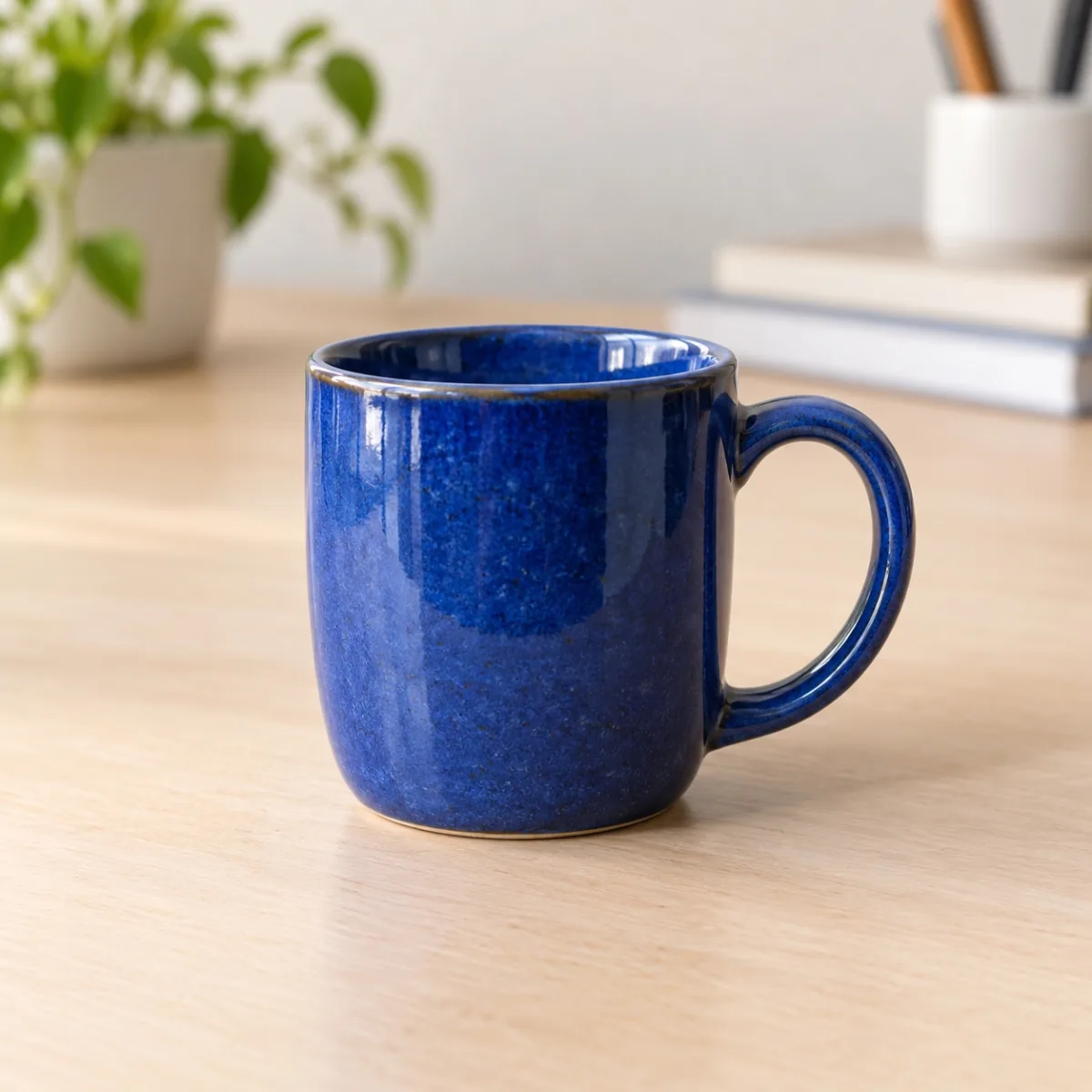
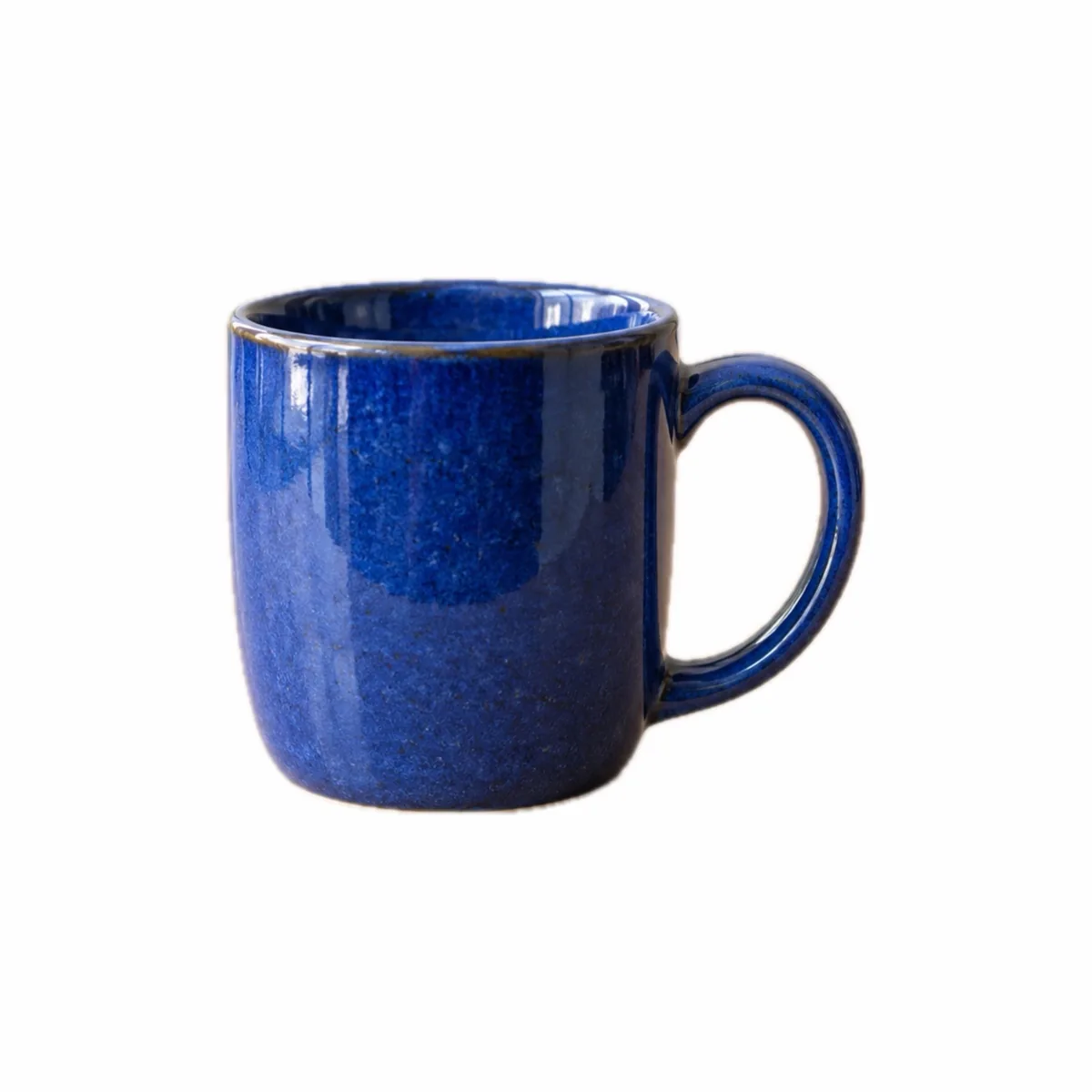
Start with an accurate view of the object
Choose a sharp photograph with the entire object visible. Even lighting and a background that differs from the subject make isolation easier. Keep detail views when they help communicate condition, material or scale. A square layout cannot replace those details or restore a part that is hidden in the source image.
Background removal may fail or remove delicate, reflective or translucent parts. Inspect handles, cables, feet and glass edges especially carefully. If the object blends into the scene, taking another photograph can be more useful than repeatedly changing the layout settings.
Build the square in PhotoWisp
Find the tool in the More menu after selecting a photo. It reuses an existing applied cutout when one is available. JPEG, PNG and HEIC files are supported as source images.
- Add and select the photo, then open More and Product photo…
- Choose a white background for JPEG or a transparent background for PNG.
- Set the square’s edge from 1,000 to 2,000 pixels for your intended use.
- Adjust the minimum margin from 6% to 28% and inspect how the object fits.
- Check the edges and click Apply layout.
- Run preparation for your selected action, inspect Preview and Compare, then use Save copies.
Understand margins and output dimensions
The subject is centred and never enlarged. A small source can therefore leave more empty space than the minimum margin you selected. Choosing a larger square does not create new detail inside the object. Use a better source photograph if you need the product itself to appear sharper or occupy more pixels.
The square size in the tool describes the layout before final preparation. The selected action’s file size and dimension limits apply afterward and may reduce the result. Check the dimensions reported for the ready copy rather than assuming the layout setting is always the final exported size.
Check the copy for its destination
A white JPEG creates an opaque image. A transparent PNG lets you reuse the object on a compatible background but may be larger. Neither option guarantees acceptance by a marketplace or form. Read the actual destination’s requirements before choosing a format and output target.
Tool-generated copies have their metadata removed while originals stay intact. Photo processing takes place locally without transferring images to a server, on macOS 14 or later on Intel and Apple Silicon Macs. Before sharing, check that the layout preserves useful characteristics of the object and that its edges still look convincing at full size.
Common questions
Why are the margins larger than my setting?
The setting is a minimum margin. Because the subject is never enlarged, a small source may leave more space inside the square.
Does Apply layout save the file?
No. Apply the layout, prepare the copy using your chosen action, inspect it and then save it.