
Select useful views
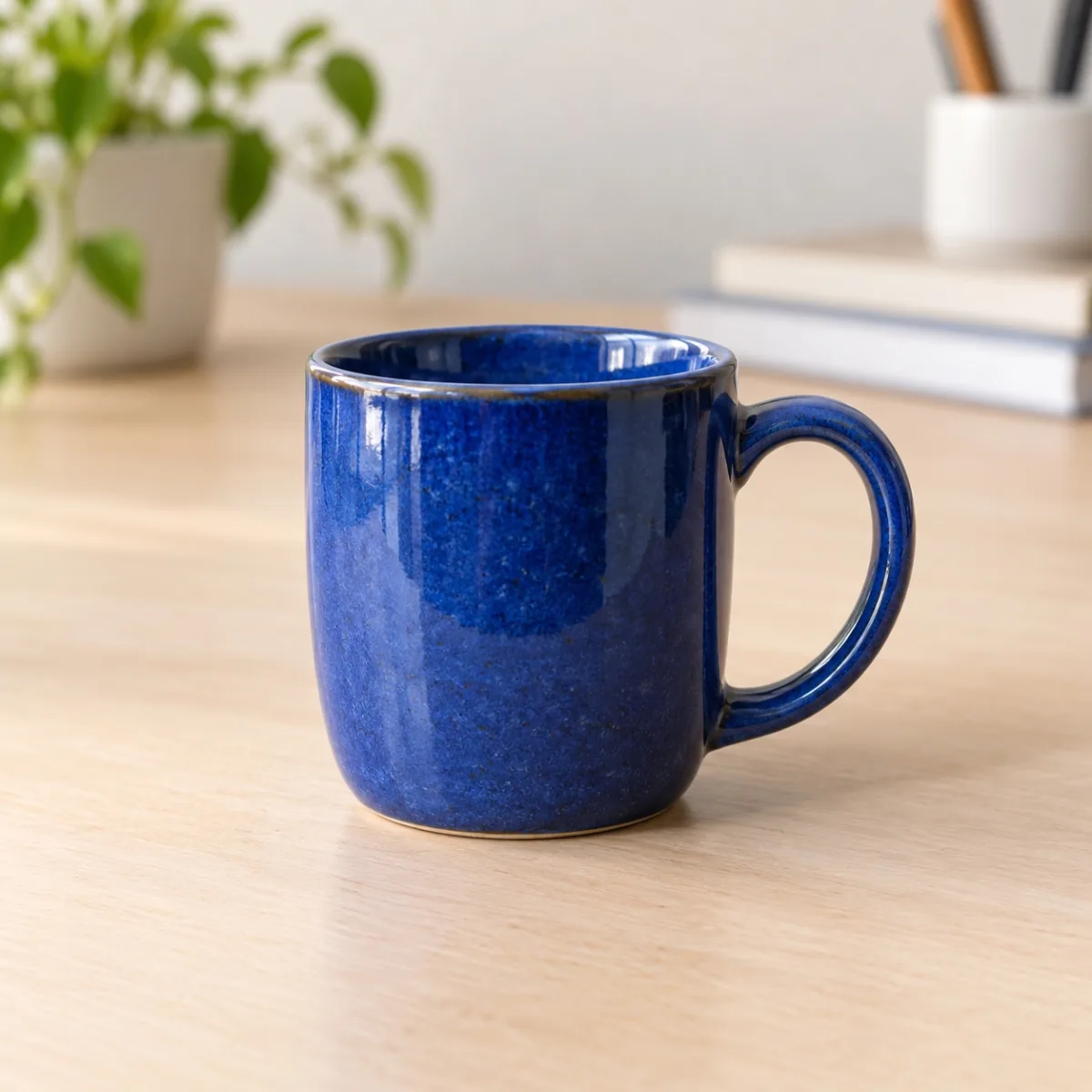
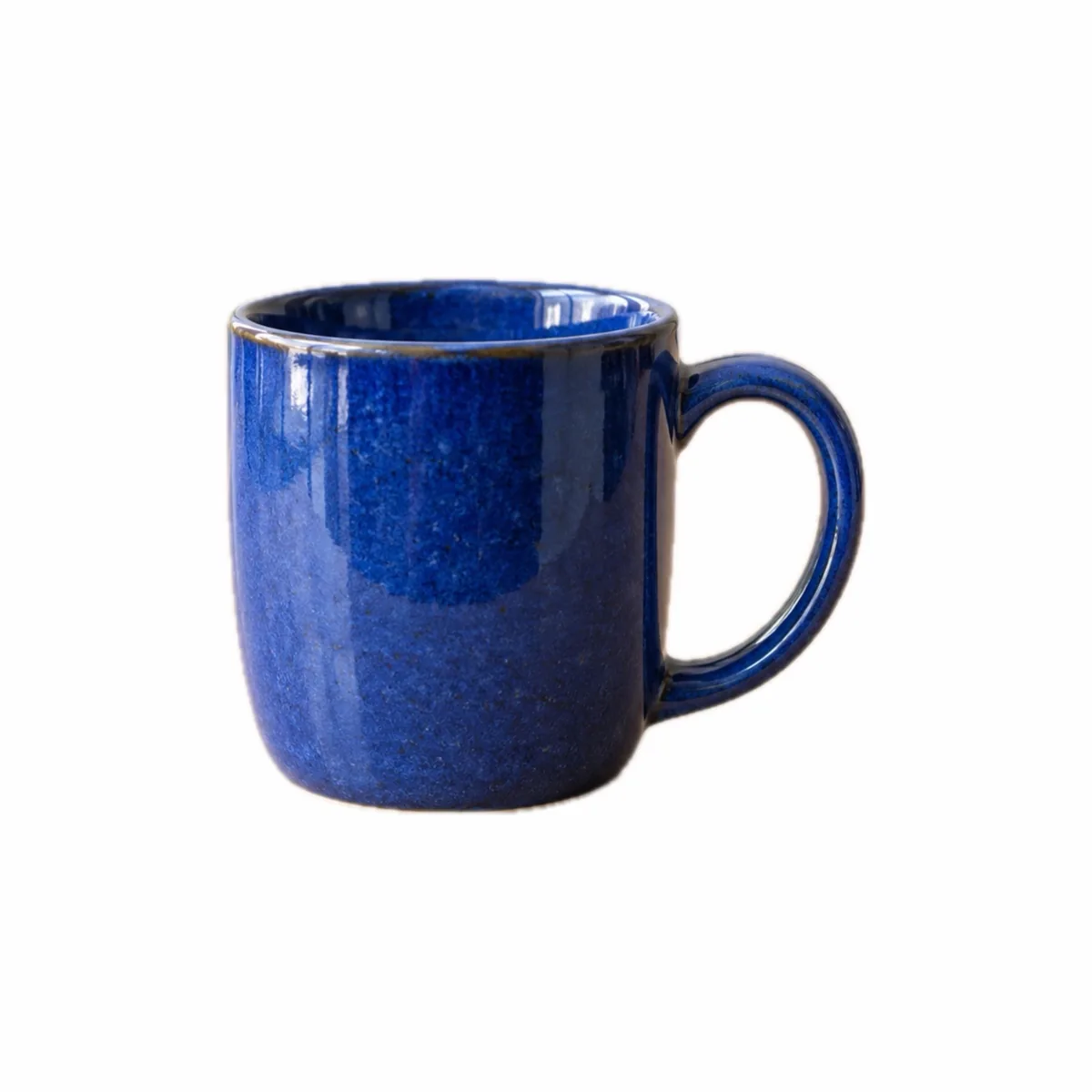
Start with a sharp overview, then add angles, included accessories and significant defects. A simple background and even light make the object easier to understand. Removing the background can clarify the composition, but it should not remove any useful part of the product.
Read the destination’s current instructions for formats, dimensions, file size and presentation. No single setting applies to every listing service. A square is one layout option; adapt it to the shape of the object and the place where you intend to publish.
Create a consistent presentation
Choose a source with enough detail. PhotoWisp does not enlarge the subject just to fill the frame. An object that occupies few pixels in a small source may therefore retain more empty space around it.
- Add and select the photo, then open More and Product photo…
- Choose a square from 1,000 to 2,000 pixels and a minimum margin from 6% to 28%.
- Select white JPEG or transparent PNG to suit the destination.
- Inspect the cutout and apply the layout.
- Prepare the copy using your selected action, compare it with the original and save it.
Review before publishing
Inspect edges, delicate parts and reflective surfaces at 100%. Check that handles, cables and accessories are still present. File size and dimension settings used during final preparation may reduce the initial square, so check the ready copy’s actual characteristics before uploading it.
Photo processing stays on your Mac and original files are preserved. Copies made with the tool have their source metadata removed. Before adding an image to the listing, check that it accurately represents the object. Keep complementary detail photos when they communicate something useful, such as wear, a model number or the contents of a set.
Common questions
Is a white background compulsory when selling an item?
That depends on the destination and your needs. Check its rules. PhotoWisp offers white JPEG or transparent PNG without guaranteeing acceptance by every service.