
Agree on the files to deliver
Distinguish originals, viewing copies and images for publication. Ask about format, maximum file size and useful dimensions before transforming the files.
Create a separate delivery folder so versions do not get mixed together. If originals need to stay untouched, keep them elsewhere and prepare copies specifically for this batch.
Prepare and name the copies
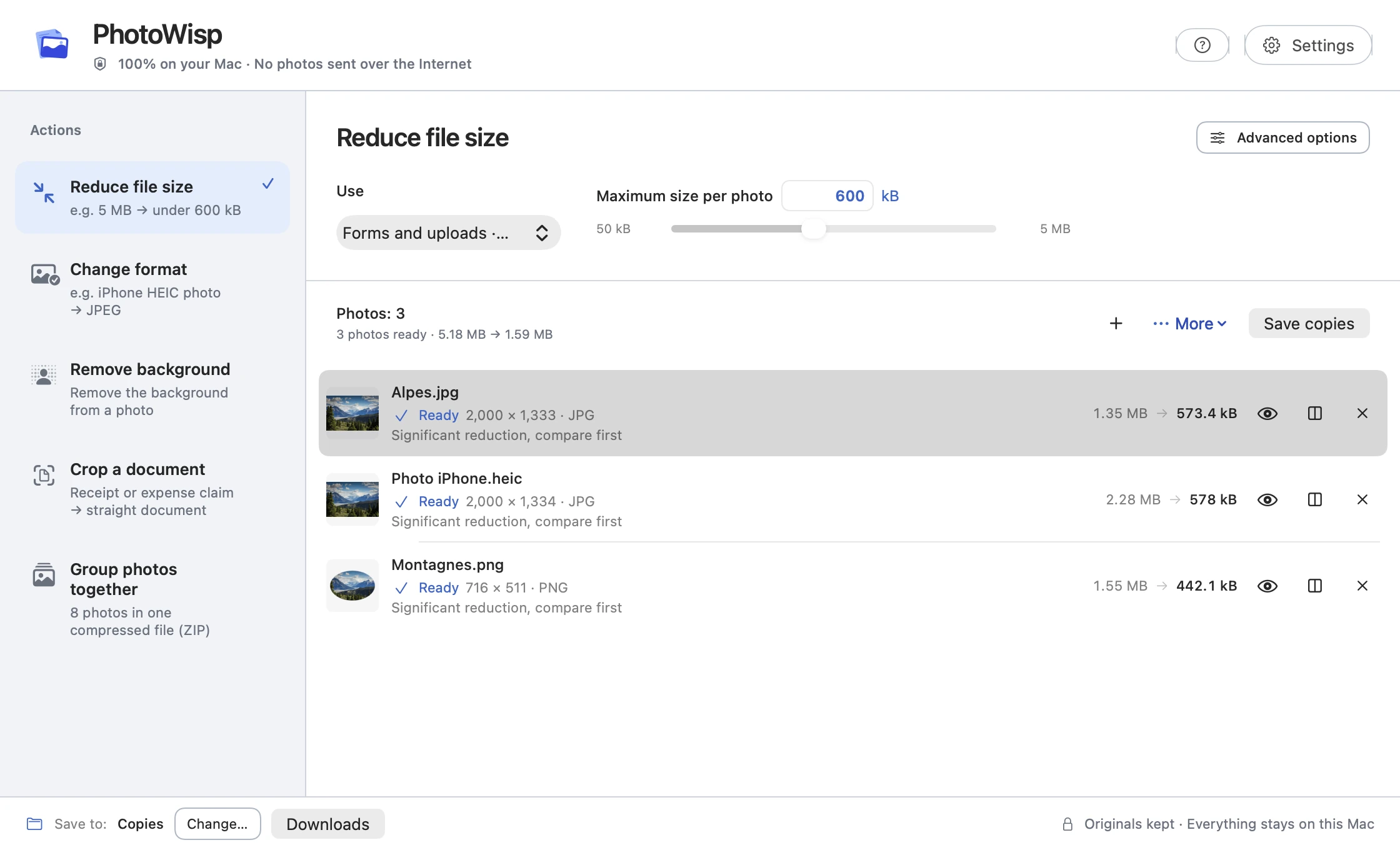
A per-photo limit makes each file easier to share, but does not set a maximum for the entire folder. Total size depends on the number of photos and the actual results.
- Add the photos and choose Reduce file size or Change format to match the client’s request.
- In advanced options, check the maximum long edge and metadata setting.
- Enable Rename copies if a batch name followed by numbering will make delivery clearer.
- Prepare the images and inspect any flagged results or excessive loss of detail.
- Save copies to the delivery folder.
Create a ZIP containing the right versions
Group photos bundles the files added to the app. It does not automatically substitute edited versions or prepared copies.
To deliver smaller versions, save them first. Then remove the batch from the list, add the copies from the delivery folder and choose Group photos. If you add the originals, the ZIP will contain those originals and their metadata.
Check before sending
Open the saved ZIP and check a few files: names, extensions, appearance and batch contents. A ZIP mainly keeps images together; it may save very little space when they are already compressed.
Send the file using your usual tool. PhotoWisp does not provide a delivery link or send anything to the client. A batch can hold up to 500 photos.
Common questions
Does the ZIP automatically contain compressed copies?
No. It contains the files you add. Save the copies and add them as a new batch before creating the ZIP.
Is 600 kB the limit for the whole batch?
No. It applies to each photo. Check the final ZIP’s size before sending.